.png&w=3840&q=75)
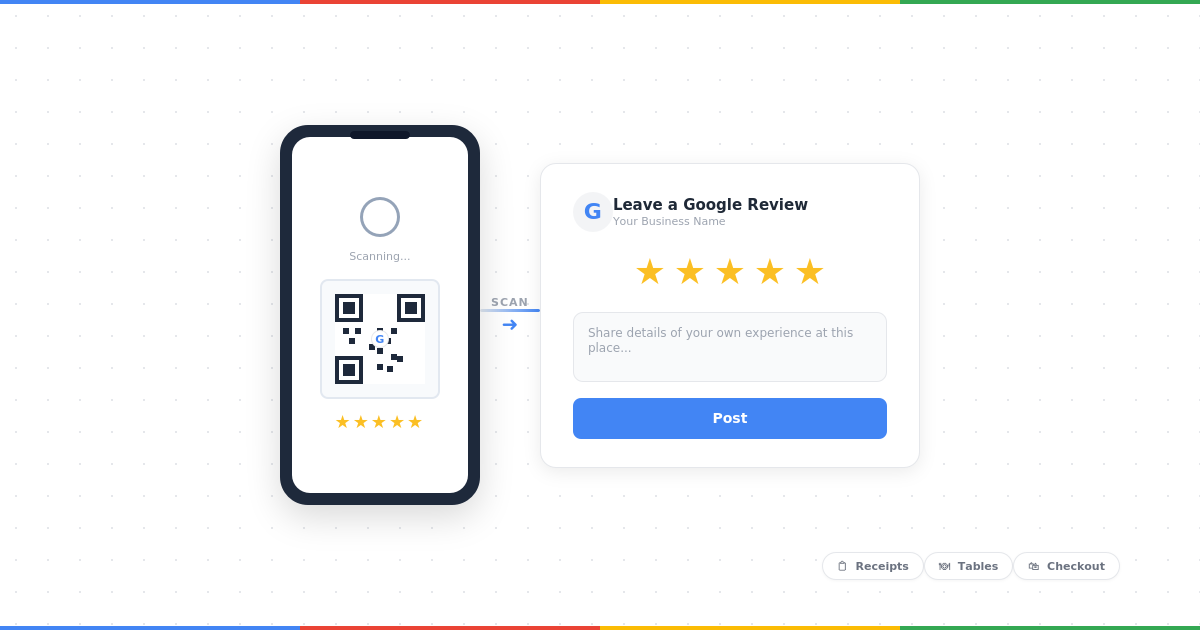
A customer finishes their meal, tells the server it was amazing, walks out the door, and never leaves a review. Not because they didn't want to. Because by the time they got home, opened Google, searched for the restaurant, found the listing, scrolled to reviews, and tapped "Write a review," the moment had passed. A QR code for Google reviews eliminates every step except one: scan, review.
What You'll Learn in This Guide:
- How to get your direct Google review link (the piece the QR code depends on)
- How to turn that link into a free QR code in seconds
- Whether you need a static or dynamic QR code
- Print specs so the code actually scans, every time
- Where to place the code for each type of business
- The common mistakes that quietly kill scan rates
The customer points their phone camera at the code, it opens your Google review form directly, and the stars are ready to tap. No searching, no scrolling, no friction. The best part is you don't need to pay for it. You don't need an account, a subscription, or a "dynamic QR platform." You need two free things: a direct Google review link and any QR code generator. This guide walks you through both, plus where to put the code, how to print it properly, and the mistakes that kill scan rates.
Step 1: Get Your Direct Google Review Link
Before you can create a QR code, you need the URL it points to. This is the most important step, and it's where most businesses get it wrong. Your QR code must open the Google review form directly. Not your Google Business Profile. Not your Maps listing. The actual review form where the stars and text box are already visible. If your QR code opens the wrong page, customers have to navigate to find the review button themselves, and most won't.
The fastest way to get this link is to use a free Google review link generator. Search for your business, copy the link, done. No account needed, takes about 10 seconds.
Or get it directly from Google Business Profile:
- Sign in to Google Business Profile at business.google.com
- Click "Home" in the left menu
- Look for the "Get more reviews" card
- Click "Share review form" and copy the link
⚠️ Test the Link First
Open the link on your phone in a private/incognito browser window and confirm it lands on the review form with the stars visible. If it opens your general listing instead, the link is wrong — go back and get the correct one before moving to step 2.
Step 2: Generate the QR Code (Free)
Once you have your review link, paste it into any free QR code generator. There's no advantage to using a paid one for this. A QR code is a QR code. The link inside it is what matters.
QR Code Generator (qr-code-generator.com)
Clean, no signup, instant download.
QRCode Monkey (qrcode-monkey.com)
Lets you add a logo and change colours, still free.
Google Chrome
Right-click any page in Chrome, select "Create QR code for this page." It generates one instantly.
Paste your Google review link, click generate, download the PNG. That's it.
💡 Pro Tip
Download the highest resolution version available (at least 300 DPI or 1000×1000 pixels). A low-resolution QR code will look blurry when printed and may not scan reliably.
Static vs Dynamic: Which Do You Need?
Static QR Codes (Free)
The URL is baked directly into the code. They work forever, can't be tracked, and can't be changed after printing.
Best for: A Google review link that isn't going to change — which is exactly what you have.
Dynamic QR Codes (Usually Paid)
Route through a redirect URL, which lets you track scans and change the destination later.
Best for: Marketing campaigns — overkill for a review QR code that won't change unless you rename your business on Google.
Save your money. Static is fine.
Step 3: Print It Right
A QR code that won't scan is worse than no QR code at all. Here's how to make sure yours works every time.
Minimum Size by Placement
- Receipts, business cards, table cards (scanned from arm's length): at least 2.5 cm / 1 inch square
- Countertop stands, menus, takeaway bags (scanned from 30–50 cm): at least 4 cm / 1.5 inches square
- Wall signs, window stickers, posters (scanned from 1–2 metres): at least 10 cm / 4 inches square
Contrast Matters
Dark code on a light background. Black on white is safest. Never print a QR code on a dark or busy background, on textured paper, or reversed (white on black). Phone cameras need contrast to read the pattern.
Leave a Quiet Zone
Leave white space around all four edges of the QR code. The border should be at least the width of four of the small squares in the code. Without this margin, scanners struggle to identify where the code starts.
⚠️ Test Before Bulk Printing
Print one copy on the actual material you'll use (thermal receipt paper, vinyl sticker, card stock). Scan it with at least two different phones (one iPhone, one Android). If it scans cleanly on both, you're good to print more.
Where to Put Your QR Code (By Business Type)
Placement is everything. A QR code in the wrong spot gets ignored. A QR code at the right moment, when the customer is happiest, gets scanned.
Restaurants and Cafes
- On the bill presenter or receipt
- Table tent or small stand on each table
- Printed on takeaway bags or coffee cup sleeves
- Near the exit door at eye level
Best moment: Between finishing the meal and paying — the customer is satisfied, stationary, and has their phone nearby.
Trades and Home Services
- On the invoice or job completion form
- On a card left behind after the job
- On the side of your van (with a short call-to-action next to it)
Best moment: Immediately after completion, when the customer is relieved the problem is solved.
Salons and Barbers
- At each styling station (small stand or mirror sticker)
- On the appointment reminder card
- At the reception desk during checkout
Best moment: Right after the client sees their new cut or colour for the first time — that's peak satisfaction.
Dental and Medical Practices
- On a card given at reception after the appointment
- On the checkout/payment area
- In a follow-up text or email (use the link, not the QR code, for digital messages)
Best moment: At checkout, when the appointment is over and the patient is feeling relieved.
Retail Shops
- On receipts (printed at the bottom)
- On the checkout counter as a small stand
- Inside product packaging or shopping bags
Best moment: At the point of sale, while the customer is still in the shop.
For every business type, add a short call-to-action next to the QR code. The code on its own means nothing to someone who doesn't know what it does.
Example Call-to-Action
Enjoyed your experience?
Scan to leave us a quick Google review.
It takes less than 60 seconds.
Keep the wording friendly and brief. One sentence explaining what happens when they scan is enough.
Common QR Code Mistakes That Kill Scan Rates
❌ Pointing to the Wrong URL
If your QR code opens your Google Business listing instead of the review form, customers land on a page full of photos, hours, and directions. Most won't bother finding the review button. Always use the direct review link.
❌ Printing Too Small
A QR code smaller than 2 cm on a receipt is hard for phone cameras to focus on. When in doubt, go bigger.
❌ No Call-to-Action
A QR code with no text next to it gets ignored. People need to know what it does before they'll scan it. "Leave us a Google review" is all it takes.
❌ Placing It Where Nobody Sees It
A QR code on the back page of a menu, inside a bathroom stall, or behind the till where customers can't reach it is wasted. Put it where eyes and phones naturally go.
❌ Dark or Busy Backgrounds
Printing a QR code over a photograph, on wood-textured paper, or on a dark background makes it unreadable. Black code, white background, clean margins.
❌ Never Testing Before Printing
You printed 500 receipts with a QR code that doesn't scan because the resolution was too low. Always test one copy first.
What to Do Once Reviews Start Coming In
The QR code gets reviews through the door. What you do next determines whether those reviews actually help your business grow.
Respond to every review. Positive, negative, neutral. A profile full of reviews with owner responses signals to both Google and future customers that you're engaged and attentive. For ready-to-use response templates, see our full guide on how to respond to Google reviews.
If you receive a negative review as a result of making it easier for customers to leave feedback, don't panic. A well-handled negative review often builds more trust than a perfect 5-star profile. For strategies on dealing with unfair or fake reviews, see our guide on handling bad Google reviews.
Frequently Asked Questions
Is a QR code for Google reviews free?
Does the QR code expire?
Can I use the same QR code at multiple locations?
What size should a Google review QR code be?
Start Collecting Reviews Today
Getting a QR code for Google reviews takes less than 3 minutes and costs nothing. Get your review link, paste it into a free QR generator, print it, and put it where customers can see it. That one small step removes the biggest barrier between a happy customer and a 5-star review.